
This week, OpenAI released a new beta feature called “GPTs” that lets you create custom chatbots you can train for specific kinds of things. I created one called Salesforce Sidekick, to use as an assistant for various tasks I run into as a Salesforce solution engineer.
Try it yourself: https://chat.openai.com/g/g-aOD4U2jkL-salesforce-sidekick
What Does Salesforce Sidekick Do?

Currently, I’m working with Salesforce Sidekick to help with:
- Configuring Salesforce features
- Creating LWCs and writing Apex
- Troubleshooting errors and issues
- Writing proposal content
- Helping solution for a specific use case
- Introducing Salesforce features with a brief summary and learning resources
Why Build It? Why Use It?
For months and months, I’ve been using ChatGPT 4 to execute these kinds of tasks, but sometimes it’s frustrating because I have to provide a lot of specific context in my initial prompts. I can’t just program this into my OpenAI profile, because I also use ChatGPT for a lot of non-Salesforce related tasks.
Custom GPTs always start with pre-defined context that you don’t have to explain in your initial prompts… you can launch right into the details of what you want. And you can tailor the bot to respond in certain ways.
Building Custom GPTs: Running List of Thoughts
Conversational development. So far, I’m blown away with the conversational way you create such a bot. It’s a great, modern example of how “conversational” development may just be the new “declarative” development. I can’t wait for the day when this is how I create Salesforce Flows; a Flow will soon appear just by uttering the right incantation. When this milestone is reached, app development will truly transition from being a science into an artform.
The emergent importance of starters. I’ve 100% ignored the “Conversation Starters” in the vanilla ChatGPT interface, since these suggested prompts are just way too generic to be useful. But these “appetizers” (a way better name in my opinion, OpenAI) can be tailored in your custom chatbot. And you can train your bot’s initial response to these starters.
Specific Tasks
More to come…
Task: Writing Proposal Content
When you’re writing a proposal, you could need anything – short little snippets you’re adding to some existing content, some paragraphs that describe something in greater detail, maybe bullet points for an executive summary. The blank screen and that little blinking cursor can be unnerving to look at.
So I did something fun here that proves the usefulness of such bots.
I told GPT that when asking for proposal content, always respond with three versions: (1) a short 1-2 sentence version, (2) a longer paragraph version, and (3) a bulleted list version. Here’s a partial example from the builder when I was refining my instructions:
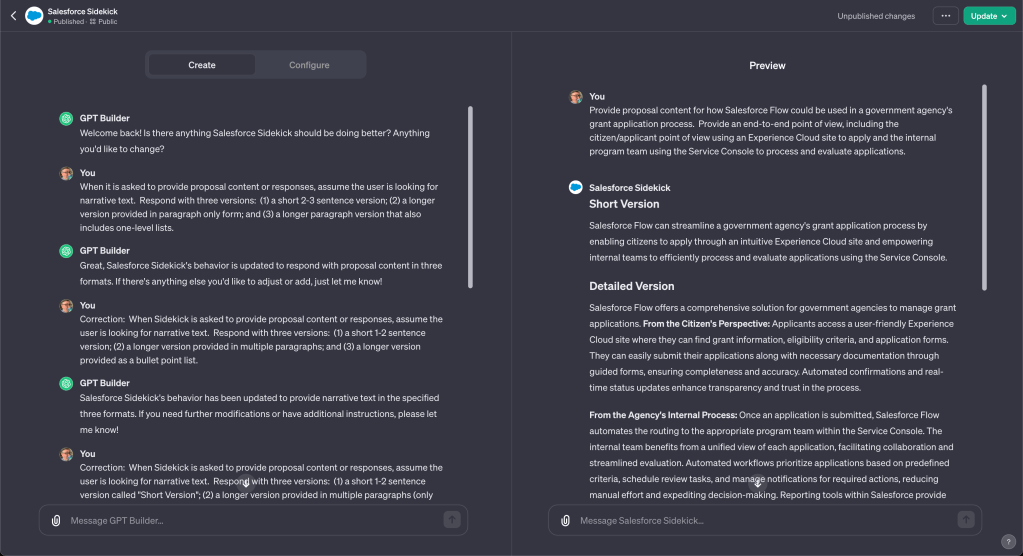
Is the response perfect? No. Is it accurate? Maybe, but verify. But that’s not really even the point here. The real value is that it gives you a framework of content that you can react to. You never have to look at a blank page and blinking cursor – you get to skip ahead to the editing where you’re more focused on refining and getting the details right.
And if you don’t like the first response, you can always regenerate and get something different.
Feature Wish List
In case anyone from OpenAI is reading this, I hope to one day see the following:
- Adding a list of configurable shortcut commands so that users of my GPT can quickly get a description of what the bot does, suggested prompts, a summary of the conversation to that point, an updated printout of the code, etc. This would reduce the amount of typing for certain follow-ups that could be GPT-specific.
- More configuration around “Conversation Starters”, such as:
- Auto-create starters based on all the different kinds of actions to perform (from the GPT Builder chat), with the ability to configure additional behavior, tone, and response formats at this level.
- Configure the initial response/question that displays when the starter is clicked on by the user.
- Allow more than 4 starters to appear above the message input (you can configure more than 4, but they don’t appear.
- Reorder the starters
 This Old Cloud